Find My PartnerFind My Partner
  • Platform
  • Features
  • Pricing
  • Blog
  • FAQ
  • Contact
  • Download
Join the Waitlist
Compliance

SMS Consent Demonstration for Twilio A2P Registration

This page demonstrates the SMS consent and phone verification flow used within the Find My Partner mobile application for Twilio A2P compliance review purposes.

Related policies
Privacy PolicyTerms & Conditions

Screenshots from the mobile app

During onboarding (Step 3 — Verify Your Mobile), users see explicit transactional SMS consent language, standard disclosure (rates, frequency, STOP/HELP), and links to our Privacy Policy and Terms & Conditions before a verification SMS can be sent.
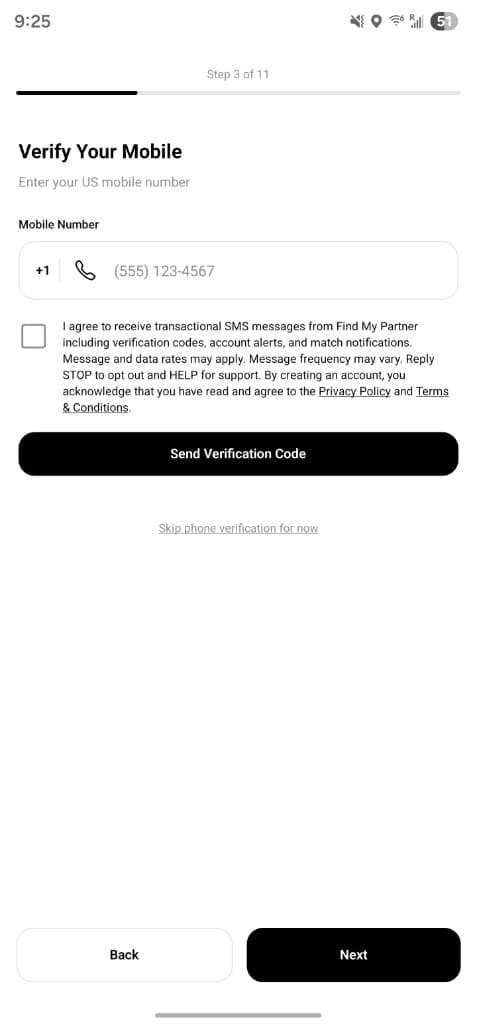
Find My Partner onboarding: Verify Your Mobile with phone placeholder, unchecked SMS consent checkbox, Send Verification Code button, and skip link.
Phone entry and consent screen before sending a code. The disclosure describes verification codes, account alerts, and match notifications.
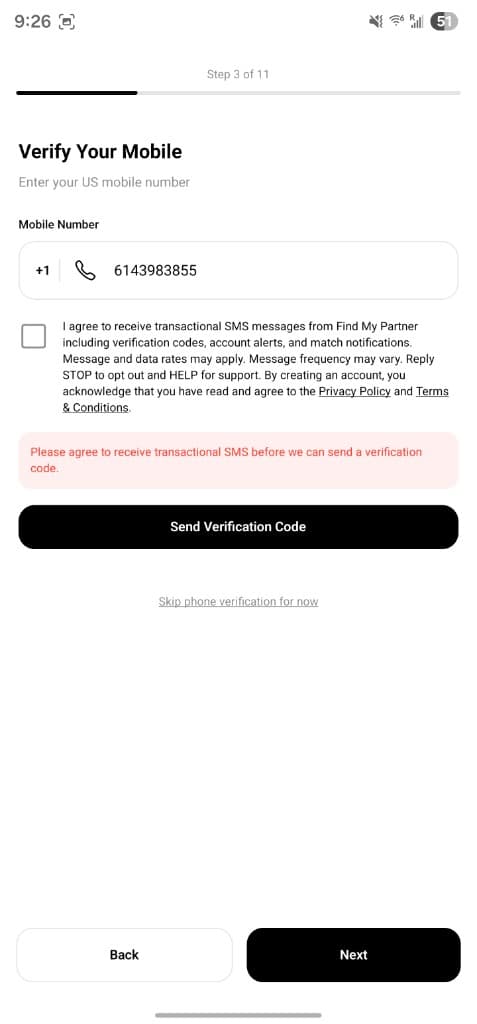
Same screen with validation error: Please agree to receive transactional SMS before we can send a verification code.
The app blocks “Send Verification Code” until the user opts in to transactional SMS; an inline message explains why.
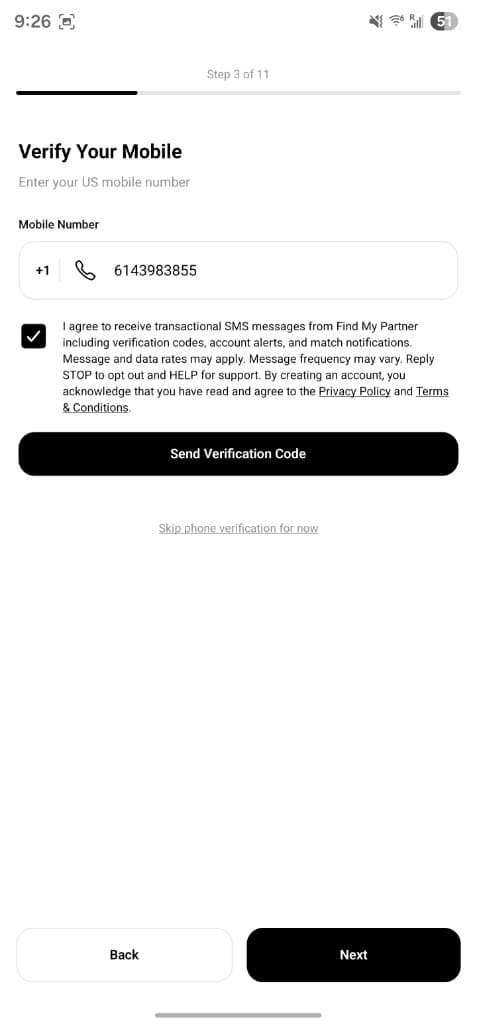
Verify Your Mobile with SMS consent checked and number entered; Send Verification Code enabled.
After the user checks the consent box, they may request a verification code.

Phone verification (OTP) flow

Phone verification uses a one-time passcode (OTP) delivered by SMS. The flow combines in-app consent, a duplicate-number check before messaging, delivery of the OTP to the user's phone, and secure verification on our backend so the confirmed number can be stored on the account.

  1. The user enters a US mobile number (10 digits; the UI shows a +1 prefix).
  2. They must check the box agreeing to transactional SMS, including the disclosures shown in the screenshots above. Without consent, the client does not send an SMS.
  3. Optionally, the user may skip phone verification for now and continue onboarding; they can verify later from account settings.
  4. Before triggering SMS, the app calls the backend to confirm the number is not already registered to another account (to avoid unnecessary messages).
  5. When the user taps Send Verification Code, the user receives an OTP by SMS. A cooldown applies before a resend is allowed.
  6. The user enters the 6-digit code in the app to prove control of the number.
  7. The app submits the code for verification; the server validates it, confirms the phone is still eligible (including unique-to-account checks), and records the verified number on the user's profile.

Phone verification currently uses Firebase Authentication. We are migrating to Twilio Programmable SMS for OTP delivery.

SMS keywords (STOP, HELP, START)

These are the automated replies users receive when they text the following keywords to Find My Partner.

Replying STOP to any message from Find My Partner

Users immediately stop receiving SMS and receive a confirmation:

You have successfully been unsubscribed. You will not receive any more messages from this number. Reply START to resubscribe.

Replying HELP

Users receive:

Find My Partner: For support, email support@findmypartner.com or visit findmypartner.app/contact. Msg&data rates may apply. Text STOP to opt out.

Replying START (after opting out)

Users are resubscribed and receive:

You have successfully been re-subscribed to messages from this number. Reply HELP for help. Reply STOP to unsubscribe.
Find My PartnerFind My Partner™
Find your partner for life.
App StoreGoogle Play
Platform
How It WorksFeaturesPricing
Company
AboutBlog
Support
Contact UsFAQ
© 2026 Find My Partner. All rights reserved.
Privacy PolicyTerms of ServiceCommunity GuidelinesCookie Policy